Top-Up
This tutorial will introduce the concept of Consent, guiding you through the example case of a parent setting up an automation to top up their child’s account at the end of the month. We will use the Sandbox environment to create an automation and run it.
Prerequisites:
- Knowledge of how to deploy a script and create an Automation
- Access to the sandbox
The script
Please take a look at the script used:
trigger = "time";

def account_parent = ${account_parent:scan};
def account_child = ${account_child:scan};

balance = getBalance(account_child).getAvailableBalance();

if (balance < 100) {
    def payment = PaymentInfo.builder()
        .payer(AccountInfo.builder()
                .type(AccountIdentifierType.SCAN)
                .identifier(account_parent)
                .build())
        .payee(AccountInfo.builder()
                .type(AccountIdentifierType.SCAN)
                .identifier(account_child)
                .build())
        .amountInfo(AmountInfo.builder()
                .currency(CurrencyEnum.GBP)
                .amount(100 - balance)
                .build())
        .paymentReference("Top-up payment.")
        .build();
    createPayment(payment);
}
-
trigger = "time";
Here the trigger is defined as a time type, indicating that it will run on a scheduled determined by the automation. For example, on the first day of the month. -
def funds_source = ${funds_source:scan};
def acc_to_top_up = ${account_to_top_up:scan};
Two SCAN-type script parameters, composed of the account number and sort code of each account, which will be provided in the automation. This will be used for the payment. -
balance = getBalance(acc_to_top_up);
This built-in function is responsible for obtaining the balance of the child’s account. This is used to determine how much needs to be transfered in order to top-up the child’s account to the desired balance.
Importantly, the getBalance function requires consent to be given, from the account whose balance is being checked, to the account running the automation trying to check the balance. If the automation tries to run, and consent has not been granted, the run will fail and the error will be logged.
Requesting and Granting Consent
To request consent during the creation of an Automation, click the Manage Consent button.
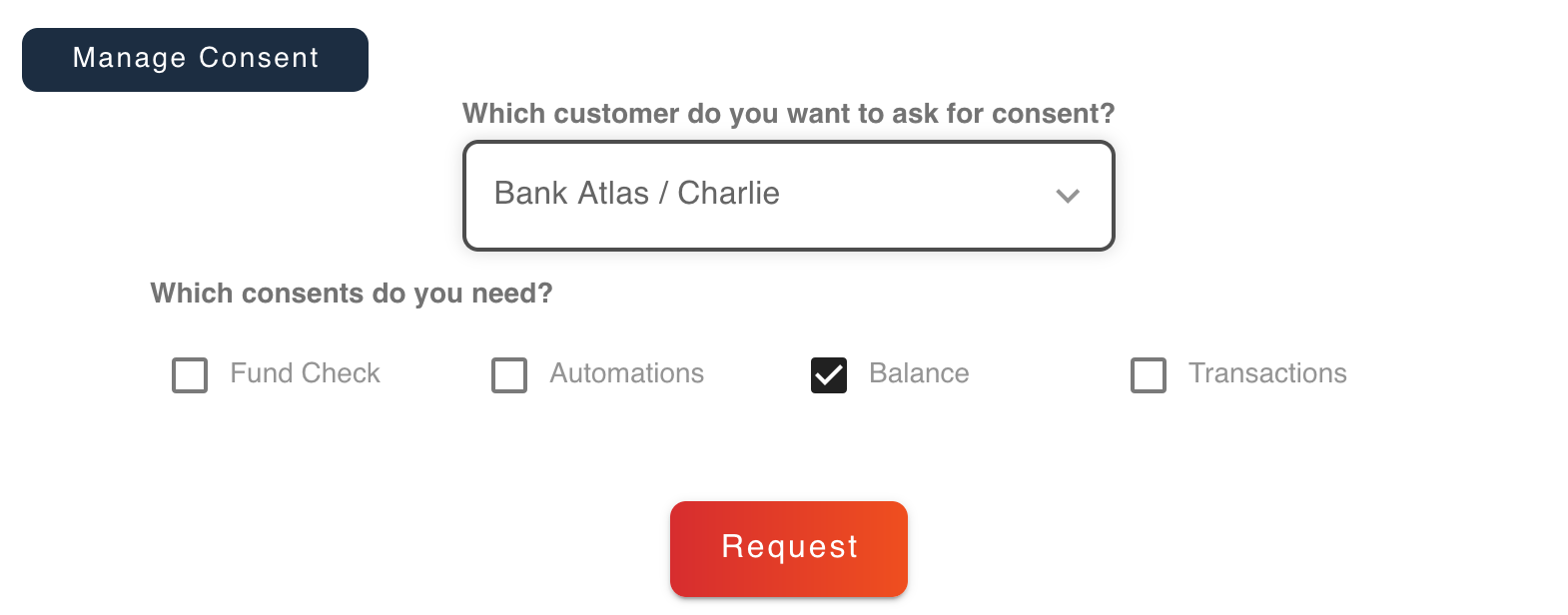
In the newly displayed area you will be able to select another account holder, and the types of consent, and then submit the request with the Request button.
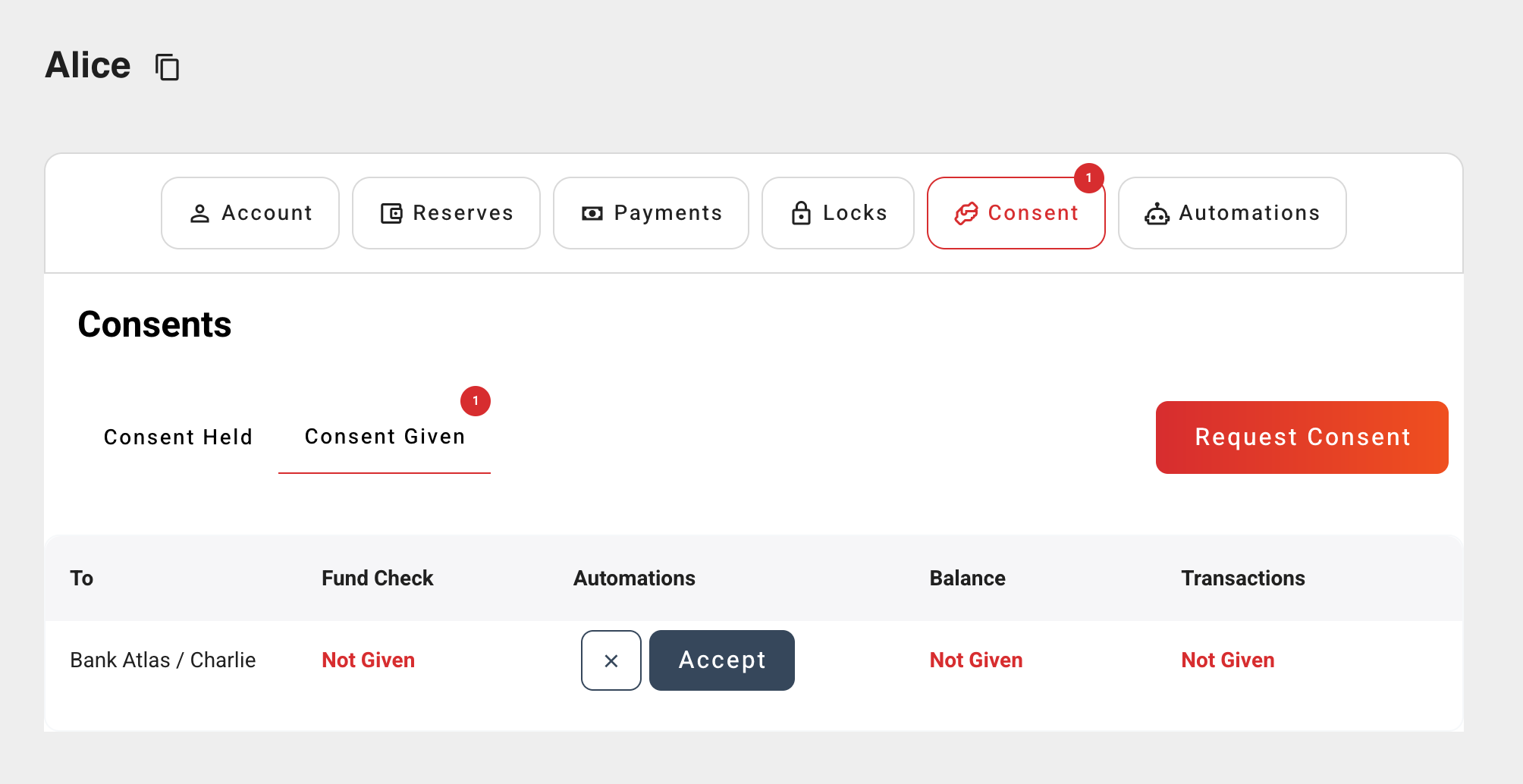
Then, navigating to the user whose consent you requested, you will see the request in the consents given tab, and be able to give it.
After this, you can run the automation and see the desired effects.